

AI text improvement in one click
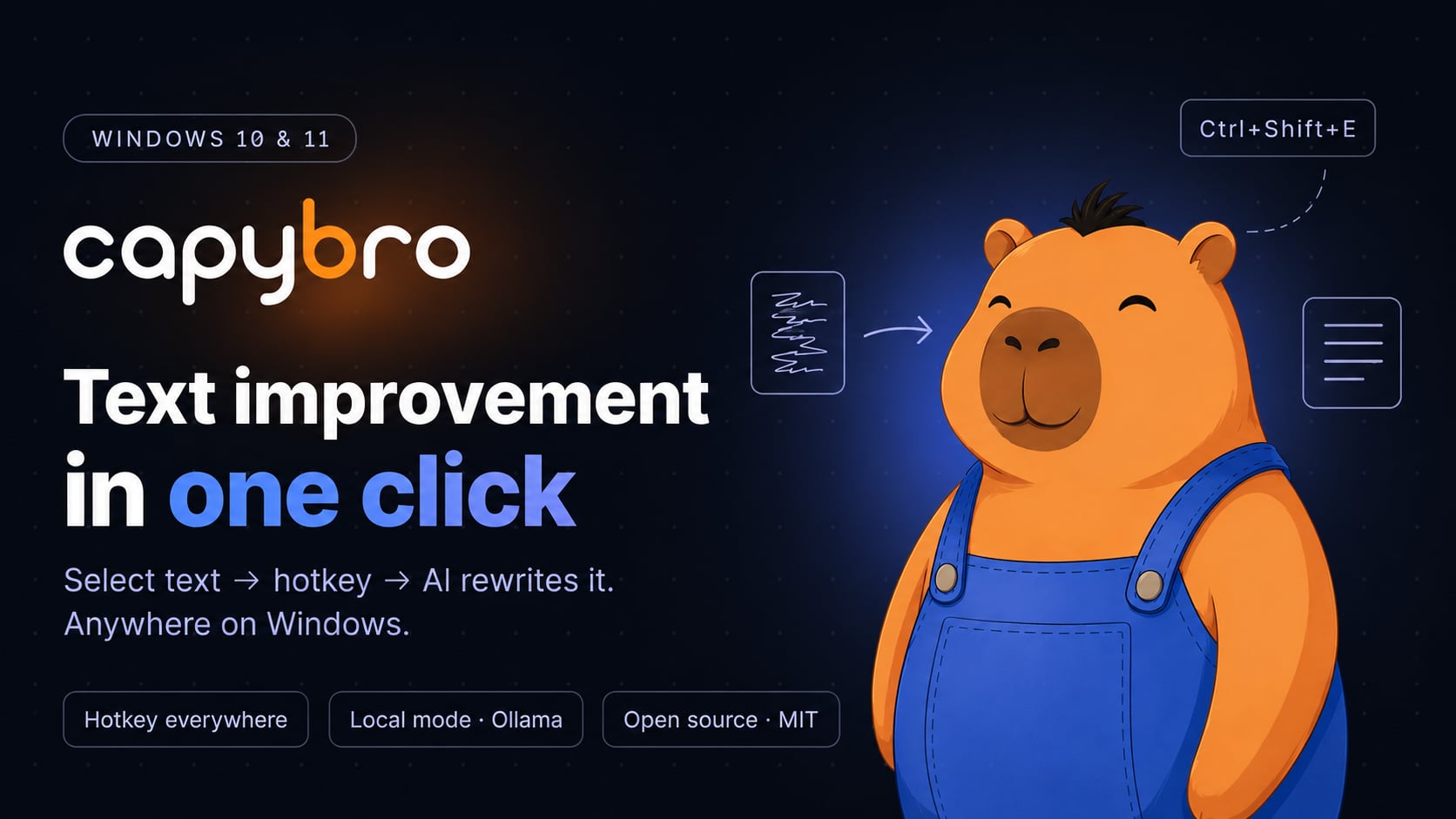
CapyBro is an AI writing assistant for Windows that works in any app. Select text → press a hotkey → it rewrites, fixes grammar, or translates in place. Use cloud models like GPT-4o, Claude, and Gemini, or a fully local AI via Ollama. Works in Word, Outlook, Telegram, your browser, and any IDE.

Free version forever. Pro — one-time payment, no subscription.
Hi. I want to take vacation next week from Monday to Friday because I have family things. Hope it's not gonna be a problem with work.
Dear team, I would like to request leave from next Monday through Friday inclusive due to personal family circumstances. Thank you in advance for your understanding.
See it in action
Features
Everything you need for fast text work
No bloat, no ads, no tracking. A utility for people who write a lot and want to write better.
Hotkey everywhere
Works in Word, Telegram, Chrome, Outlook, VS Code — any program with text. Select → press → get result.
Cloud AI or local
Choose OpenRouter (access GPT, Claude, Gemini in one account) or Ollama — fully local AI, your text never leaves the computer.
Custom prompts
Create unlimited template commands: «Fix grammar», «Translate», «Rewrite formally», «Make twice shorter». A hotkey for each one.
Privacy by default
API keys encrypted locally (Windows DPAPI). History stored only on your computer. In Ollama mode — text never goes to the network at all.
Three UI languages
English, Ukrainian, Russian — switch instantly. AI models support many more languages: the response will be in whatever language you request.
Open source
The free version's code is open on GitHub under MIT license. Anyone can verify exactly what the program does — especially important for working with confidential text.
Plus
Power-user toggles under the hood
Each one a single checkbox in Settings → Additional features. Most off by default — turn on only what you need.
Diff preview before applying
On by default. Side-by-side comparison of original vs AI result before the text gets replaced — accept, regenerate, reject, or hand-edit the result first.
Streaming responses
Watch the AI type its answer in real time. Start reading before generation finishes. Cancel mid-stream with one click.
Separate model per prompt
Cheap fast model for grammar fixes, powerful one for complex rewriting. Each of your prompts can override the default.
Balance & cost estimate
For OpenRouter — see account balance and the approximate cost of each request before sending. No surprise bills.
PII redaction
Auto-mask emails, phone numbers, credit cards, IBAN, and names before sending to AI. The model only sees tokens like <<EMAIL_1>>.
Configurable request timeout
60 seconds by default. Set 0 for unlimited (handy for slow reasoning models with large context). User cancellation still works.
What it looks like
Clean interface. Nothing unnecessary.
The program lives in the tray and stays out of the way. Settings open only when you need them.
Settings
One screen — all the main parameters. Hotkeys, AI provider (cloud or Ollama), timeout, interface language.
Prompts
Create unlimited prompts. Separate hotkey and dedicated model for each — if needed.
History
Every operation is stored locally. You can re-copy the result or return to the original text.
Who it's for
Built for the way you work with text
Whatever you write — code, coursework, or copy — CapyBro fits into the apps you already use.
Developers
Commit messages, docstrings, error explanations, and ticket translation — right inside VS Code, the terminal, and GitHub. Local Ollama keeps proprietary code private.
See use caseStudents
Fix grammar, paraphrase, summarize readings, and translate sources in Word, your browser, or a PDF — free forever, works offline.
See use caseWriters & creators
Shift tone, tighten, expand, and spin headline variants in Scrivener, Notion, WordPress, or Google Docs — with prompts in your own voice.
See use casePricing
Free for everyone. Pro — for those who want more.
Base version stays free forever. Pro — one-time payment, no monthly fees.
Free
Everything you need for everyday work. No ads, no time limits.
- Text improvement via hotkey
- OpenRouter + Ollama (both providers)
- Unlimited custom prompts
- History of last 50 operations
- 3 UI languages
- Basic updates
Pro
Premium prompt packs, history export, model-switch hotkey + all future updates.
No subscription · 14 days money-back
- Everything from the free version
- 5 premium prompt packs (~50 ready)
- History export to a file (CSV / JSON)
- Model-switch hotkey
- Custom one-off prompt box
- Settings backup
- Usage statistics
- Priority email support
- All future updates free forever
Full comparison
No monthly payments. Buy once — use for years.
What is CapyBro?
CapyBro is a free, open-source (MIT) Windows tray app that rewrites, fixes, or translates selected text with AI on a global hotkey. Select text in any program — Word, a browser, an IDE, an email client — press Ctrl+Shift+E, and the AI improves it in place. It runs natively on .NET 8 (not Electron), works with cloud models via OpenRouter or fully offline via Ollama, and keeps your text private with no telemetry. The core is free forever; an optional one-time $9 Pro adds extras, with no subscription.
Is CapyBro free and open-source?
Yes. CapyBro's core is free forever and open-source under the MIT license — you can read or build the code on GitHub. There is no trial, no nag screens, and no subscription. An optional one-time $9 Pro upgrade adds premium prompt packs, history export, a model-switch hotkey, and usage statistics, but the free version is the complete hotkey-rewriting workflow.
Which operating systems are supported?
For now, only Windows 10 and Windows 11 (x64). macOS and Linux versions are not planned — the program uses specific Windows APIs for hotkeys and text-pasting into other programs.
Is internet required for it to work?
Depends on the mode. In OpenRouter mode — yes, because the AI runs in the cloud. In Ollama mode — NO, the AI runs right on your computer with zero network requests. You can fully disable internet and the program will still work.
Which AI models are supported?
Through OpenRouter — all the major ones: GPT-4o, Claude Sonnet, Gemini, Llama, DeepSeek, Mistral, and others (the full list is constantly updated). Through Ollama — any model you've downloaded locally (gemma, llama, mistral, qwen, etc.).
How much does cloud AI cost to use?
OpenRouter charges per use — you pay per thousand tokens. A typical «fix text» request costs roughly $0.0001–0.001 depending on the model. A $5 top-up on OpenRouter lasts months of active use. CapyBro shows the estimated cost of the request before sending it.
What's included in the Pro version for $9?
5 premium prompt packs (Legal, Marketing, Academic, Code Review, Business Correspondence), history export to CSV/JSON, a model-switch hotkey that cycles your 3 pinned models, usage statistics, priority email support, and all future updates free — forever.
Is this a subscription or one-time payment?
One-time payment. Pay $9 once — use Pro forever, with all future updates included. No monthly or yearly payments.
On how many computers can I use Pro?
One device per key. To use Pro on another PC, remove the license on the old machine first, then activate the key on the new one. Need more? Write to [email protected].
What if I don't like it after purchase?
14 days money-back guarantee. Write to [email protected] — I'll refund without unnecessary questions. It's not a marketing trick, it's a real policy.
Is it safe to enter the OpenRouter API key in the program?
Yes. The key is stored only on your computer, encrypted via Windows DPAPI (the standard Windows mechanism for secrets). It's never sent to any third-party server except OpenRouter itself. The free version's code is open — you can verify.
What if I don't want to trust anyone with my text?
Enable Ollama mode. It's a fully local AI that runs on your computer. Install Ollama from ollama.com, download a model (e.g., «ollama pull gemma3»), switch CapyBro to Ollama — and your text never leaves the machine. A moderately powerful computer is needed (8+ GB RAM for small models, 16+ GB is better).
I'm from Ukraine / Poland / Georgia — will I be able to pay?
Yes. Gumroad accepts international Visa and Mastercard cards, as well as PayPal and Apple Pay. For Ukrainian cards you may need to enable «internet payments» in your bank app (Privat24, Monobank — that's a setting in card security).
Where to write with questions or bugs?
Email: [email protected] — I respond within 1–2 days. Or file an issue on GitHub — there you can also see the full history of known bugs and planned features.
What's the difference between CapyBro and Grammarly?
Grammarly is a grammar checker primarily for browsers and Microsoft Office, with a $12+/month subscription. CapyBro is a Windows tray utility that works in any application via a global hotkey — Word, Notepad++, VS Code, Slack, Telegram, your IDE, even single-line input fields. Beyond grammar checking, CapyBro can rewrite, translate, summarise, change tone, or follow any custom prompt you define. Pricing: free forever for the core features; $9 one-time for Pro. No monthly subscription.
How is CapyBro different from ChatGPT Desktop or the Windows Copilot key?
ChatGPT Desktop opens a separate window — you have to copy your text in, wait for the response, copy it back. The Windows 11 Copilot key opens a sidebar that only works inside some Microsoft apps. CapyBro stays in your context: select text in any application, press one hotkey, the AI rewrites it where it already is. No copying, no window switching. You also choose the model (GPT-4o, Claude, Gemini, local Ollama) per prompt instead of being locked into one.
Does CapyBro work in Microsoft Word, Outlook, and other Office apps?
Yes. CapyBro uses the global Windows clipboard plus keyboard simulation, so it works in any text input where you can select and paste — including Word, Outlook, OneNote, Excel cells, PowerPoint slides, Teams chat, and all third-party Office add-ins. Workflow is the same as elsewhere: select text → Ctrl+Shift+E → AI rewrites in place.
Can CapyBro rewrite Ukrainian, Russian, or other non-English text without translating to English?
Yes. Each prompt has a «preserve original language» flag — when enabled, the AI fixes grammar, rewrites, or restyles the text but keeps it in the original language. This works for Ukrainian, Russian, Polish, German, French, Spanish, and any other language the underlying AI model supports. The flag defaults to ON for the built-in «Fix errors» and «Rewrite» prompts; you can configure it per custom prompt in Settings → Prompts.
Can I install CapyBro without administrator rights on a corporate computer?
Yes. The installer is per-user: it places files in %LOCALAPPDATA%\CapyBro\ and registers everything in the current user's profile (no Program Files, no system services, no UAC elevation). CapyBro installs cleanly on locked-down corporate computers where the user account doesn't have admin privileges. The Microsoft Store version goes even further — it installs through the standard Store mechanism with no installer prompts at all.